Cmylead Extension for Zoho CRM

This extension enables to integrate CmyLeads into Zoho CRM. With the help of this extension all the new leads created within CmyLeads are brought instantly into Zoho CRM. 

What is Cmylead?

Cmylead is a modern SaaS platform designed to help businesses manage digital business cards, AI-driven avatars, lead generation, and team branding — all in one place.

By integrating Cmylead with Zoho CRM, you can:

  • Instantly sync contacts and leads from Zoho CRM
  • Generate AI-powered digital business cards for every contact
  • Use avatars to respond to leads with personalized messaging
  • Track engagement and interactions in real time

License Cost

  • No cost to install the extention.

Requirements

To use this extension, make sure you have:

  • A valid Zoho CRM account with admin permissions
  • A registered Cmylead account (create one at https://app.cmylead.com)
  • An active internet connection

Help & Installation Guide For Zoho CRM Integration

Welcome to the installation guide of CmyLeads Integration with Zoho CRM. In this guide we will cover the installation steps , features and what you should avoid while using the extension.


This section will cover the step by step guide for installing the extension.  As a first step will be to install the extension from Zoho Marketplace

Step-by-Step Installation & Configuration

Step 1: Install the Extension

  • Go to the Zoho Marketplace and search for Cmylead (or click here if available).
  • Click Install.
  • Choose the CRM users who should have access to the extension.
  • Accept the terms and click Continue to Install.
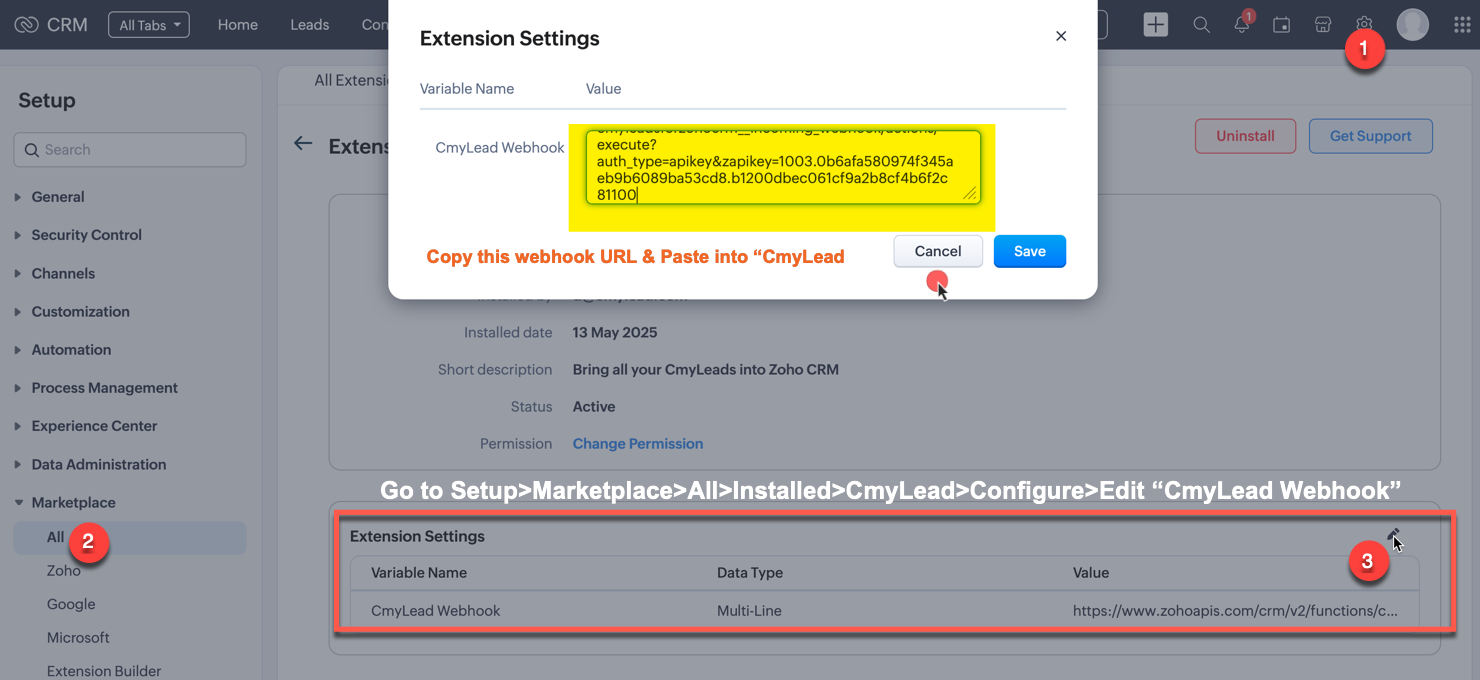
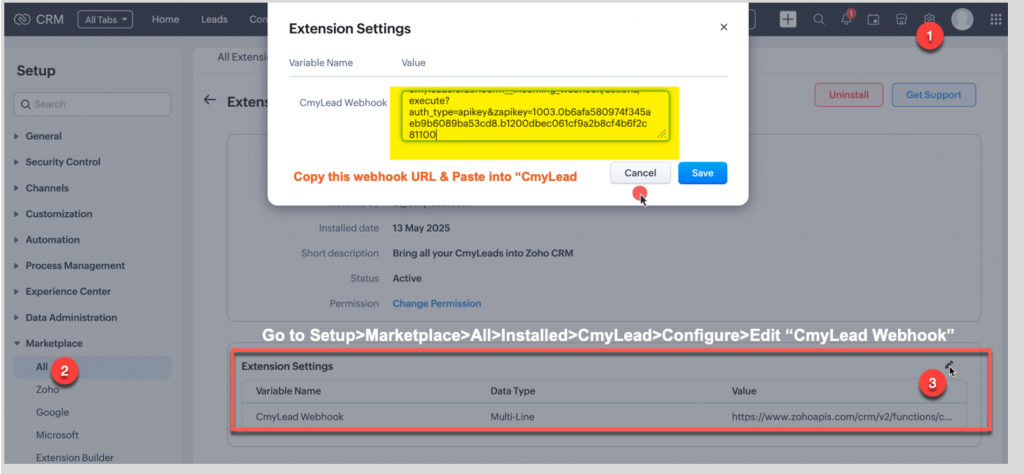
  • Once you install the extension go to Setup>Marketplace>All>Installed>CmyLead>Configure>Edit “CmyLead Webhook”

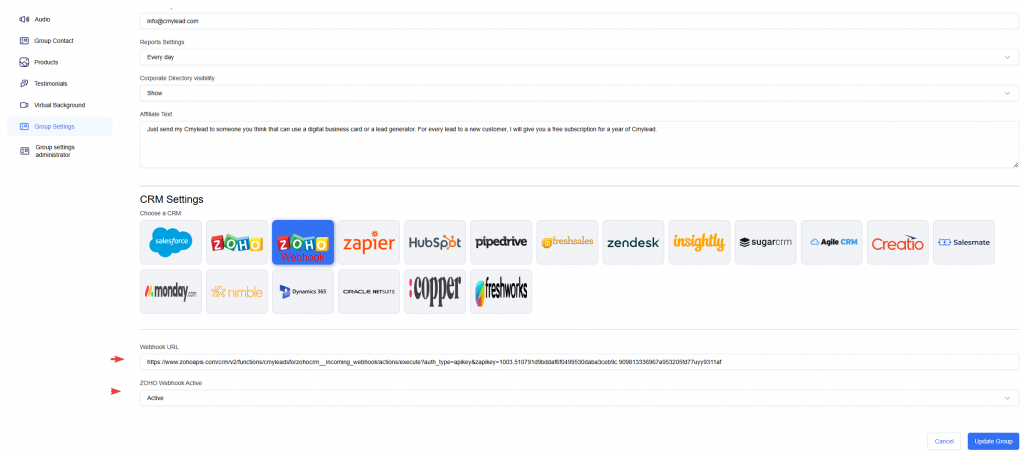
Step 2: Copy the webhook link and the open the CmyLead panel to paste the API key under Integration Panel.

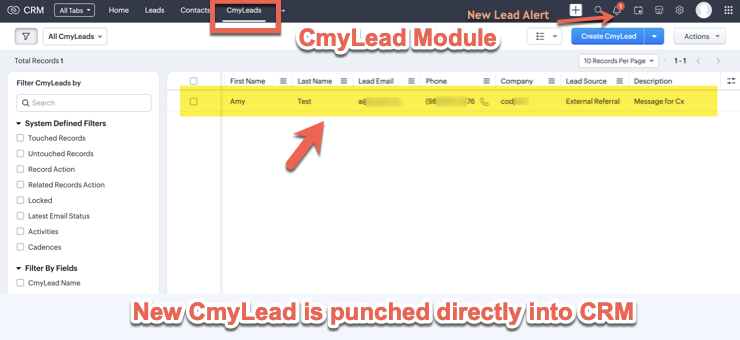
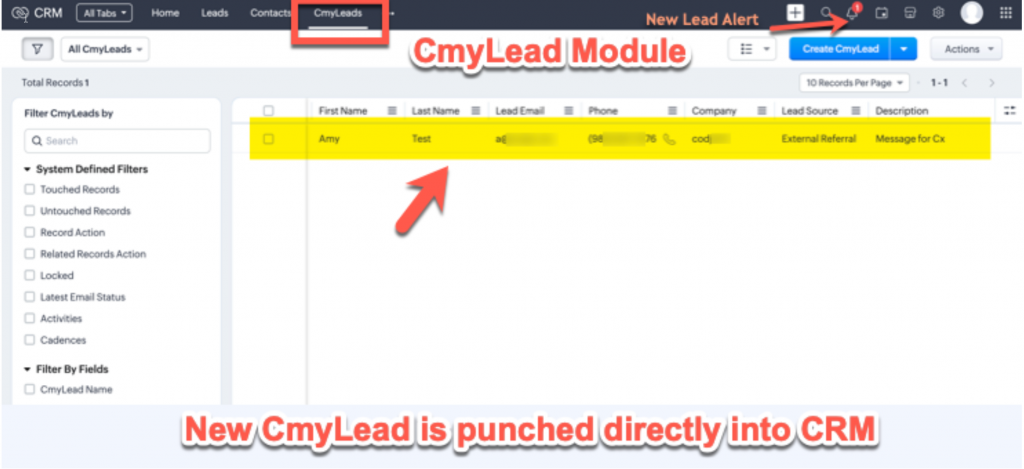
Step 3: The integration is ready to use . Once a new lead comes into CmyLeads , it will be added instantly into CmyLeads module of Zoho Crm  

Key Features

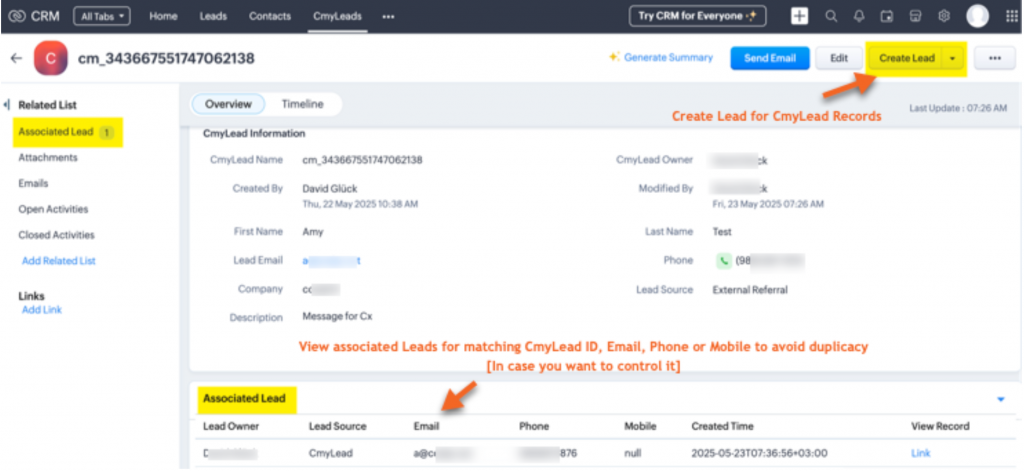
  • >> Bring CmyLeads into Zoho CRM’s dedicated module “CmyLeads” instantly.

  • >> Also when new lead comes into Zoho CRM you will get notified with sales signal “bell icon as shown in screenshot above”.
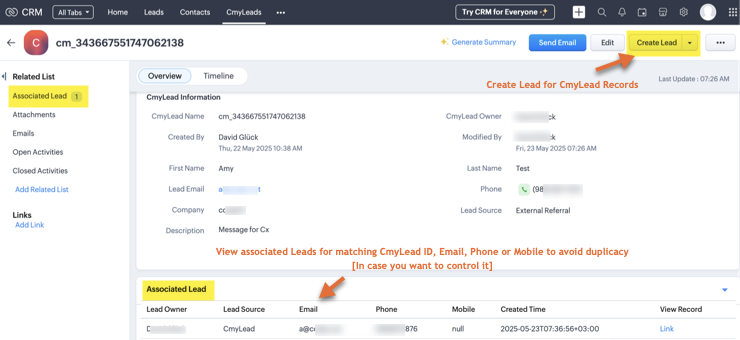
  • >> View matching Leads from CmyLeads module on the basis of matching CmyLead ID, Email, Phone & Mobile.
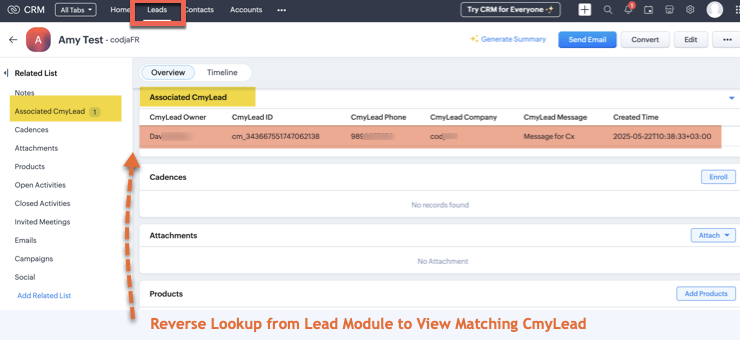
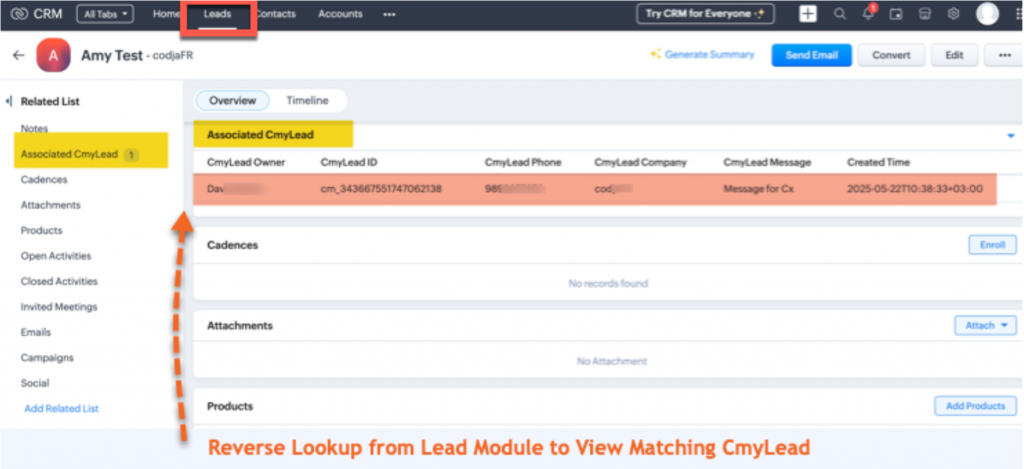
  • >> Reverse lookup provided at Leads module to view associated CmyLead.

Do’s & Don'ts while using the extension

  • >> Never edit the CRM generated webhook while copying the webhook url . As a precautionary measure cancel rather than save the record. 
  • >> Before you click to add leads from the CmyLeads module, please check for duplicated records under the “Associated Leads” section . The data is searched in this section for matching mobile , phone , email id and/or CmyLead_ID . So this avoids to create any duplicate record in leads module unnecessarily.

Contact Support

For any questions or help setting up your integration, contact us:

📧 Email: info@cmylead.com
🌐 Website: www.app.cmylead.com